
Ventoy for Linux
An easier way to try Linux OS ISO files from a USB flash drive

Anyone who has run a "live" Linux distribution on a USB flash drive knows the chores involved. Download the Linux OS distribution file (ISO), run a program to load it onto a flash drive and make it bootable, and finally boot the computer from the flash drive. This process is simple enough, but it can get tedious for anyone wanting to "kick the tires" on several Linux distributions before deciding on one to install permanently.
A utility called Ventoy helps to simplify this process. It does this by making it possible to load several ISO files on a flash drive so that the user may select the one they want at boot time. Once the flash drive is set up with Ventoy, more ISO files may be added to it without having to run a program. Visit the Ventoy site for many more details:
https://www.ventoy.net/en/index.html
A good video to follow for step-by-step installation instructions on Linux systems:
[How to] Create Multi Bootable USB from ISO with Ventoy | Linux | Windows | Very Easy (2022)
A good place to find an inventory of Linus OS distributions is on "Distro Watch". They provide a rank-order list of Linux OS distributions based on popularity. As I write this, the top 6 over the past 6-month period are:
1 – MX Linux
2 – Mint
3 – EndeavourOS
4 – Debian
5 – Manjaro
6 - Ubuntu
https://distrowatch.com
Follow the links on Distro Watch to download the ISO file for each Linux OS you'd like to try.
Once the USB flash drive is set up with Ventoy, simply paste the ISO files onto the flash drive. Per the documentation, Ventoy will search directories (folders) and sub-directories for ISO files, so feel free to organize the content of the flash drive any way you'd like.
OK, at this point we are ready to use Ventoy to launch any of the ISO files we've loaded on the flash drive.
First, be sure the USB flash drive is inserted in the computer. Then re-boot the computer. As the computer is booting, get into BIOS. (On my computer, hitting the ESC key during boot-up will enter BIOS, but each computer may have a different method.)
In the computer's BIOS, navigate to the option to change the boot priority or sequence. Set priority #1 to the USB flash drive. If you've set your normal boot priority as #2, then the computer will boot normally when the Ventoy flash drive is not inserted. Then "save and exit" BIOS. The computer will now boot into the USB flash drive, and Ventoy's menu of ISO files will display:
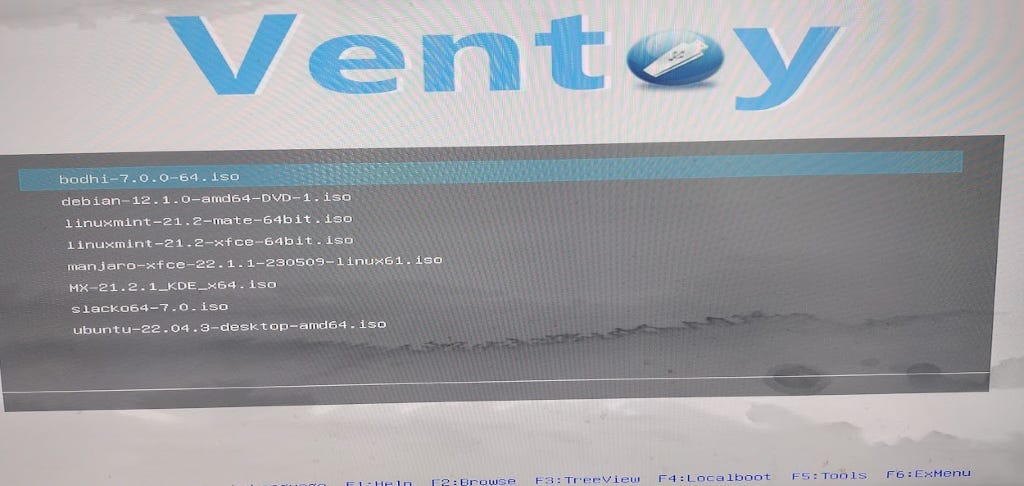
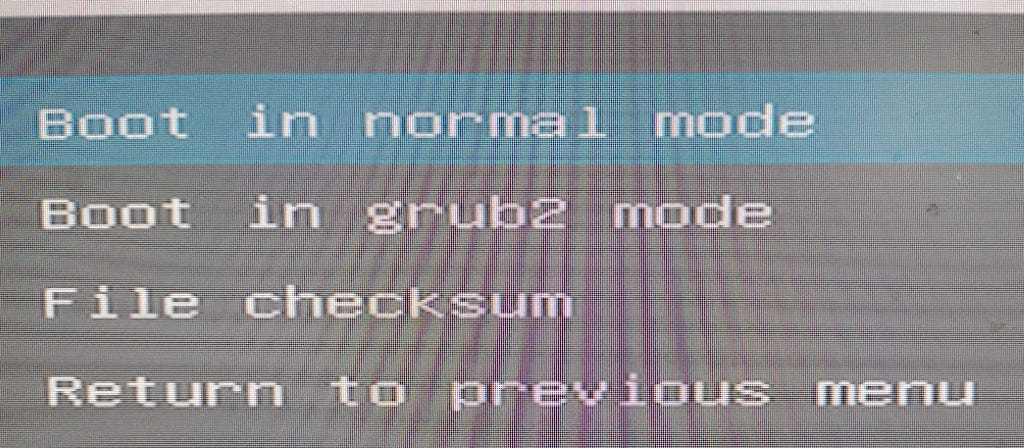
Use the up/down arrow keys to select the desired OS image, and press Enter. That ISO will be used to boot the computer. The next screen will be another menu. Just select the first option, "Boot in normal mode.":
At this point, have some patience, as OS files are large and may take a few moments to load. Once loaded, the fun may begin. Explore the OS desktop and its menu. Explore the built-in applications. Connect to your internet to see how the OS handles file downloads and web sites.
When finished with an OS, find the power icon.
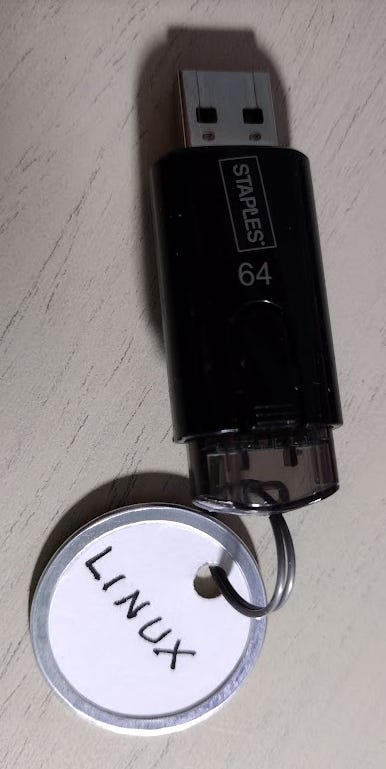
Having ready access to a live Linux OS can be handy when the OD installed on the computer acts up or fails in some way. Booting into an alternate OS may provide emergency access to disks, and give insights into what may have failed. So, I've decided to dedicate a 64 GB flash drive to Ventoy.
Enjoy!